Getting started with AniMathIO 2.0
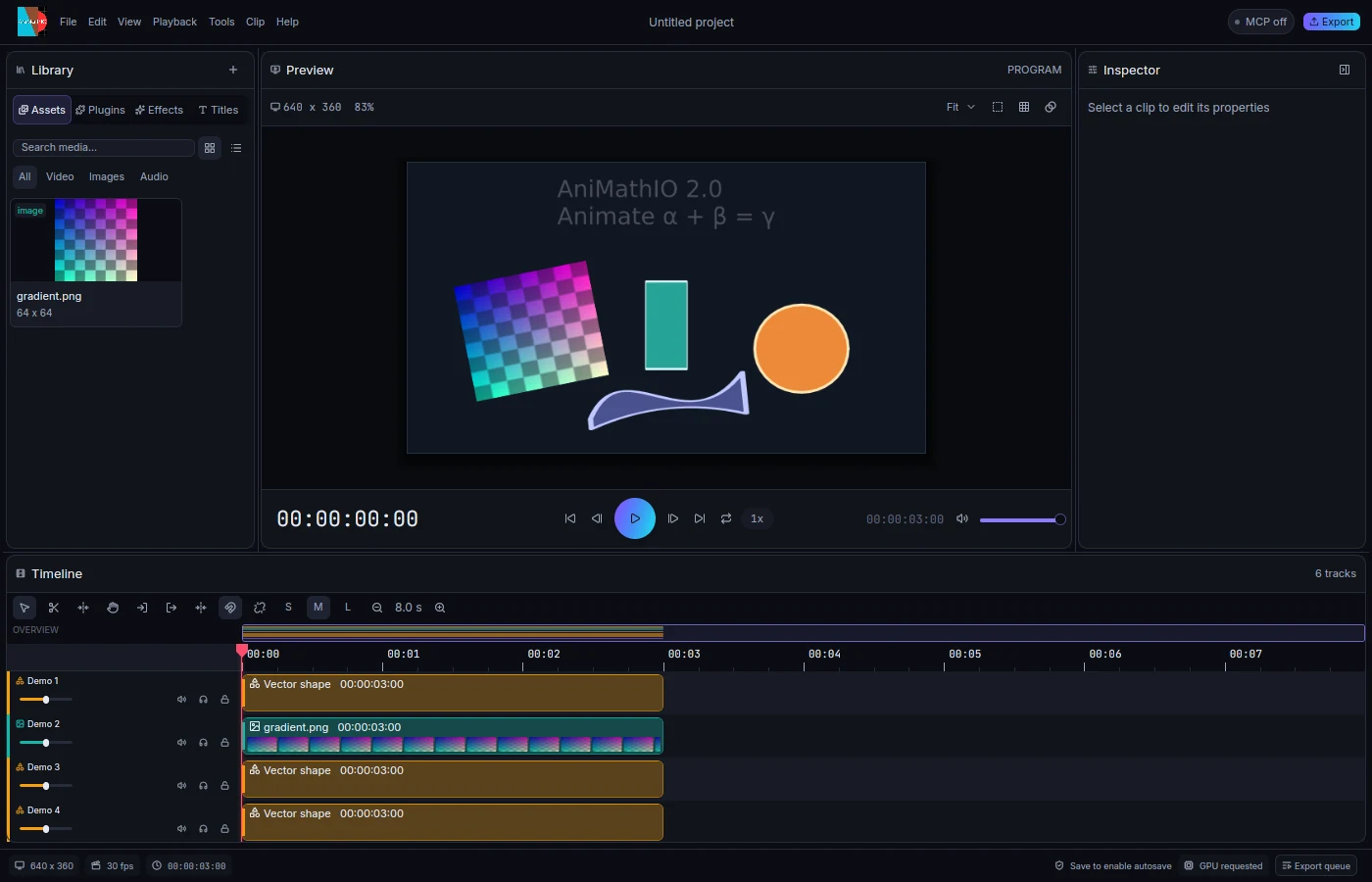
AniMathIO 2.0 is a native editor for math animation videos, rewritten from scratch in Rust. The core is a small, reliable video editor: media clips, a multi-track timeline, transforms and keyframes, audio, preview and export. Everything math-specific (text, LaTeX, graphs, shapes, effects, importers) is a sandboxed WebAssembly plugin.
Coming from 1.x?
The 1.x documentation is still online as v1 (legacy). Projects import with
animathio-cli import-v1; see Migrating from 1.x.
What changed from 1.x
- Native, not Electron. The editor is a GPUI desktop application. Preview renders on the GPU when an adapter is available and falls back to a CPU reference renderer, which is also what export uses.
- Plugins. Text, shapes, LaTeX, graphs, clip effects, audio effects, animation presets and the Manim importer are plugins that run in a sandbox with memory, fuel and time limits. See Plugin authoring.
- Deterministic rendering. One pure function of the project and a time produces every frame, so preview, export and the test suite agree.
- Automation. Local subtitles, autocut, scene cuts, auto reframe, beat sync, ducking and denoise. See Captions and automation.
- Scriptable. Every edit is a serializable, invertible command, available from the editor, the command line (CLI) and MCP clients (Control protocol and MCP).
- A new project format. 2.0 saves
.amioarchives. 1.x.animathioprojects import one way.
Install
Download the installer for your platform from the latest release
and follow the install page. Each installer ships the editor (animathio), the command line tool
(animathio-cli) and the first-party plugins.
Your first video
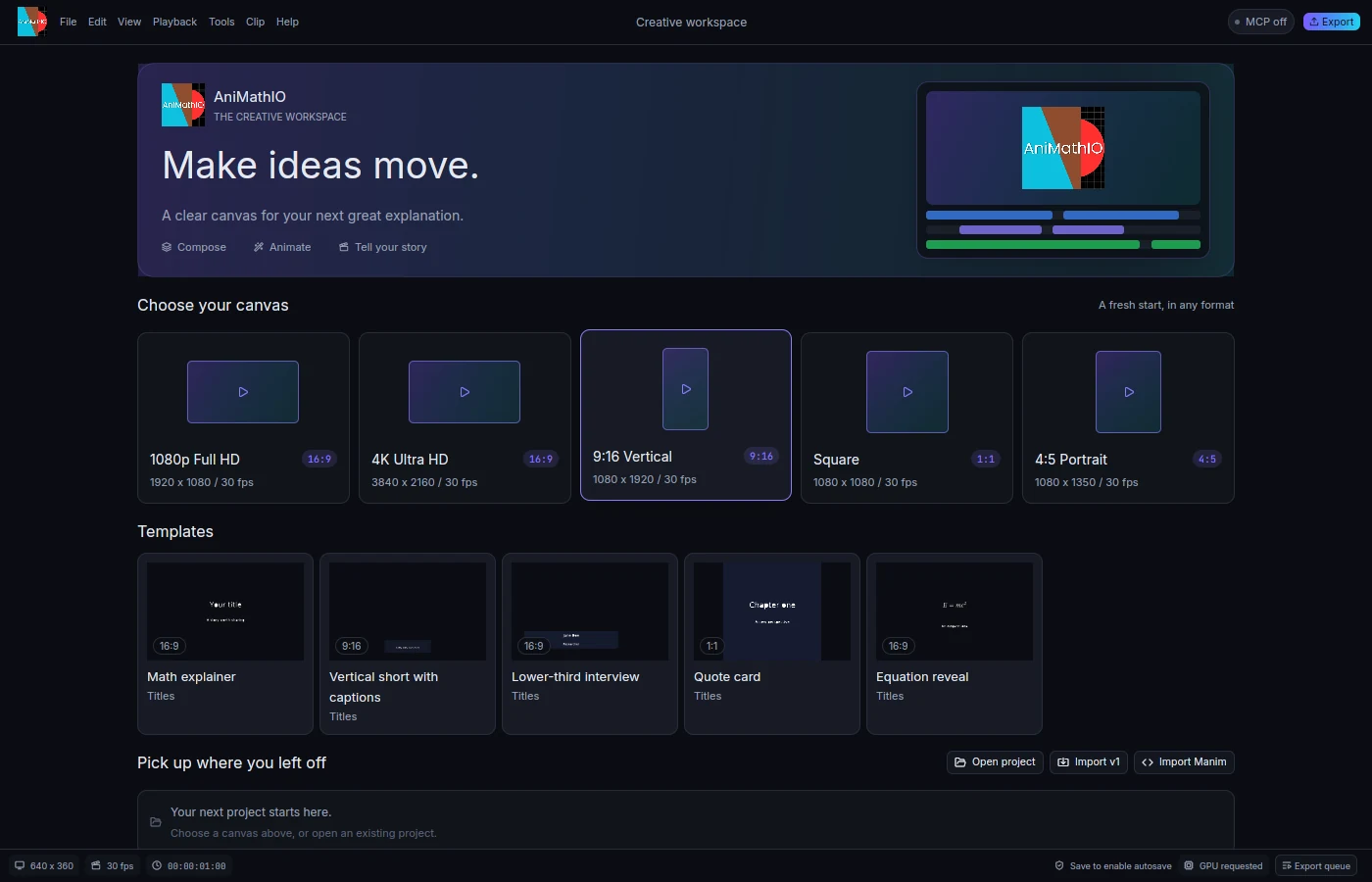
- Start. Launch AniMathIO. The start screen offers canvas presets (1080p, 4K, 9:16, square, 4:5), templates, recent projects, and Open, Import v1 and Import Manim.
- Add media. Drop files on the Library, or press Ctrl+I. A video with sound adds a linked audio clip.
- Add a math object. Open the Math tab in the Library, pick LaTeX, Plot, Vector and so on, edit it in the dialog and press Add. See Math objects.
- Edit. Cut with the blade (C) or Ctrl+K, trim, move, and animate with keyframes or the animation presets in the inspector. The default shortcuts follow Premiere Pro; see Keyboard shortcuts.
- Export. Press Export, choose a preset (for example
youtube_1080porshorts_vertical) and add it to the queue. Exports run in the background and never block the editor.
Working from the command line
animathio-cli new-sample -o sample.amio
animathio-cli render sample.amio --frame 30 -o frame.png
animathio-cli export sample.amio --output sample.mp4
The CLI reference lists every subcommand.
Where to go next
- The editor: panels, timeline, viewer, inspector and export.
- Math objects and Captions and automation.
- Plugin authoring, CLI and MCP if you want to extend or script AniMathIO.